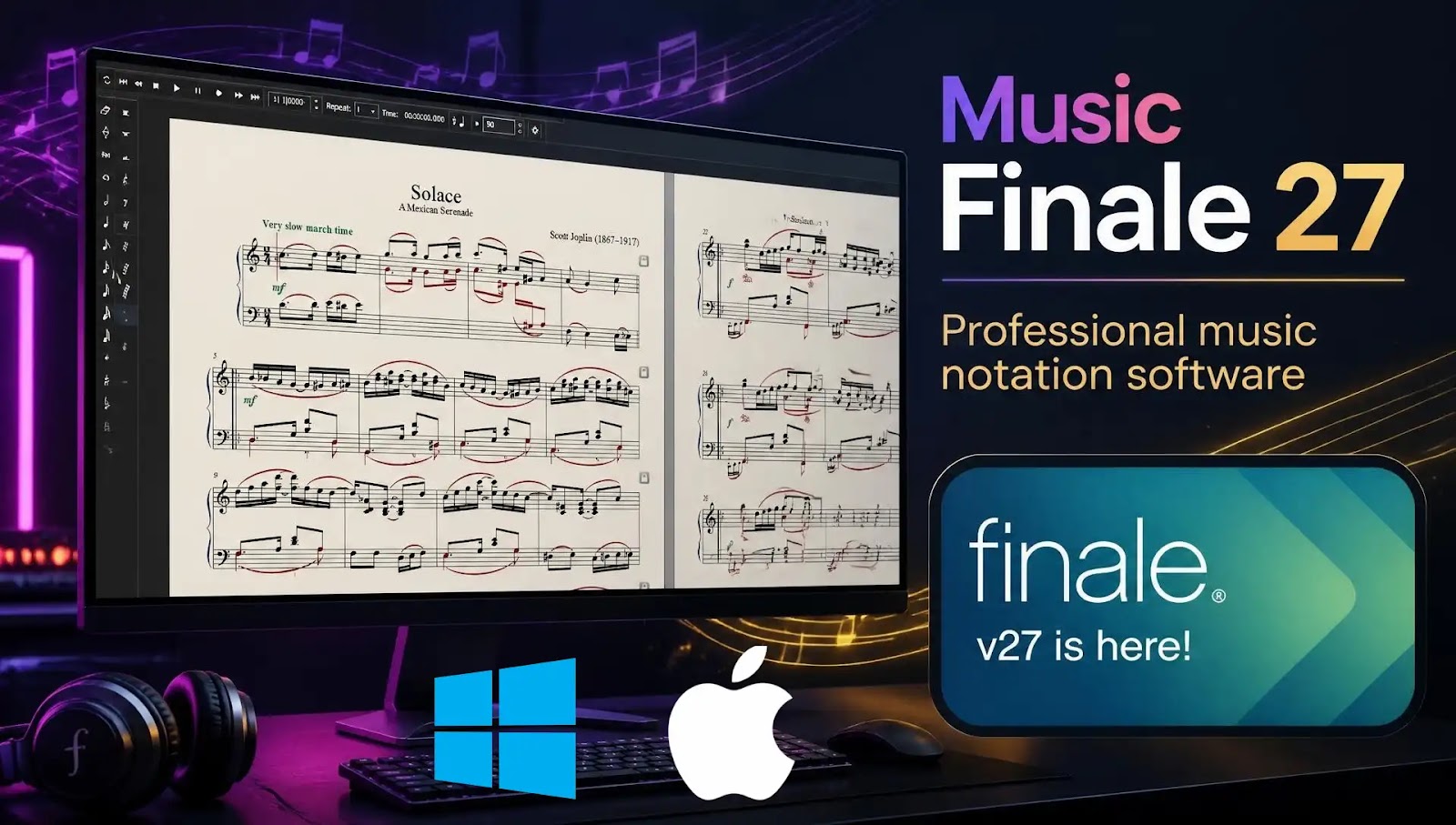
Finale 27 for Mac: Download & Install | macOS Tahoe Setup & Migration Support
Finale 27 on macOS Tahoe: Legacy Maintenance & Technical SupportCreating publication-grade sheet music, complex orchestral scores, and educational arrangements requires granular control over page layout and notation engraving. Finale 27 by MakeMusic remains a foundational desktop music notation program, historically utilized by engravers, composers, arrangers, and university faculties worldwide.Operating legacy notation software on macOS Tahoe requires active technical maintenance—from navigating post-sunset authorization frameworks to configuring audio drivers, managing SMuFL font paths, and resolving system-level playback interface glitches.Understanding Finale 27 Music Notation SoftwareFinale 27 is an enterprise-level music score publishing and engraving workstation. Built to accommodate unconventional time signatures, custom microtonal notation, and complex page geometry, it provides composers with absolute authority over every symbol, staff line, and measure line on the printed page.Complete Engraving Precision: Manual and automated positioning for stems, ties, articulations, and beam slopes to meet strict publishing standards.Flexible Note Input: Multi-modal entry tools including step-time MIDI, real-time performance capture (Human Playback), and mouse-driven Simple/Speedy entry. Data Portability: Advanced MusicXML 4.0 engines designed to export deep musical data—including dynamic markings, lyrics, and chord symbols—to next-generation notation tools.Why Maintain Finale 27 on macOS Tahoe?Legacy Catalog Access: Open, edit, and print decades of existing native .musx and .mus score archives directly without translation errors.High-DPI Retina Rendering: Precise vector rendering of musical staves, noteheads, and text blocks on Apple displays.Garritan Instrument Playback: Integrated Audio Units (AU) plugin support for realistic orchestral audio mockups using Garritan Personal Orchestra engines. Archival Extraction: Prepare legacy projects for long-term digital preservation or transition to modern software suites via clean MusicXML exports.macOS Tahoe Deployment RoadmapFollow this sequence to set up Finale 27 on your Mac workstation:Obtain Verified Installer: Secure your registered Finale 27 v27.4.1 setup image from your MakeMusic user account. Authorize System Permissions: Adjust macOS Tahoe Privacy & Security settings to allow installer execution through Gatekeeper.Deploy Core Binaries & ARIA Engine: Install the application, SMuFL fonts, and the Garritan ARIA Player plugin.License Authorization & Audio Setup: Complete software registration and configure CoreAudio output channels for zero-latency playback.24/7 Technical Support & Fix AssistancePrevent interruptions caused by OS update anomalies, audio device locks, or authorization server issues. Our dedicated technical team provides specialized assistance to keep your score archive accessible and functional.Authorization & License Recovery: Direct support navigating MakeMusic account authorizations, serial key activations, and machine transfers.macOS Tahoe Bug Mitigation: Custom troubleshooting for system UI glitches, CoreAudio channel drops, and window focus errors under macOS Tahoe.MusicXML Export & Migration Help: Hands-on assistance extracting and batch-converting legacy .musx catalogs into clean MusicXML 4.0 formats for seamless migration to modern notation software.
Key Features
- MusicXML 4.0 Integration
- SMuFL Standard Support
- Garritan Sound Library Suite
- Linked Parts Synchronization
- Universal Binary Architecture
System Requirements
For optimal performance, consider a modern processor, ample memory, and a fast storage drive. A supported 64-bit operating system is also recommended.
Exact requirements vary by software version. Please check the vendor's official documentation, or contact our support team before installing.
Installation Overview
- Check vendor requirements and ensure your Mac meets the necessary specifications
- Download the installer from the button on this page
- Run the installer and follow the setup wizard
- Restart and launch the application to complete the installation
- Reach out to our support team if you encounter any issues during the process
Need a hand with any step? Use the “Request Installation Help” button on this page.
Common Errors & Fixes
Installer will not start
Verify the installer is compatible with your Mac's operating system and try running it again. If the issue persists, contact our support team for further assistance.
Missing runtime components
Ensure your Mac has the necessary runtime components installed. If you're unsure, our support team can guide you through the process.
Application will not open after installation
Try restarting your Mac and launching the application again. If the issue persists, our support team can assist you in resolving the problem.
Conclusion & Overview
Secure your copy of Finale 27 for Mac: Download & Install | macOS Tahoe Setup & Migration Support today to elevate your system productivity. If you encounter any configuration or installation challenges, our dedicated technical support is accessible instantly via the live chat assistance channel.